Understanding Feeds as Package Repositories

Understanding Feeds as Package Repositories
In ProGet, repositories are called “Feeds”. They’re pretty easy to use and should feel familiar if you’ve worked with repositories in other tools, like Sonatype Nexus.
That said, feeds aren’t exactly the same as Nexus repositories. There are a few differences you’ll want to know about, especially around features like Connectors. It’s worth taking a little time to get familiar with these when you’re setting up your feeds in ProGet for the first time.
In this chapter, I’ll explain what’s different between Sonatype repositories and ProGet feeds, and show you how to set up your Sonatype repositories in ProGet. I’ll also walk you through migrating your existing repositories so you’ll know exactly what to expect.
Repositories in ProGet
Instead of having lots of different repository types, ProGet uses simple feeds that you can configure depending on your organization’s needs. For example, you can set up a feed to host only internal packages, or have it proxy open-source packages from public repositories like nuget.org or npmjs.org.
This setup replaces Sonatype’s separate hosted, proxy, and group repositories with a single, flexible feed that can handle any of those roles, depending on how you configure it. Connecting to public repositories or other feeds within your ProGet instance is done through Connectors.
What are Connectors in ProGet?
Connectors let your feeds pull packages from different sources once they’re set up, including:
- Other ProGet feeds
- Open-source galleries (e.g., nuget.org, npmjs.org)
- External package repositories
A feed with a Connector works kind of like a “Proxy” repository in Sonatype when it’s connected to an OSS repository, or like a “Group” repository when it connects to multiple ProGet feeds.
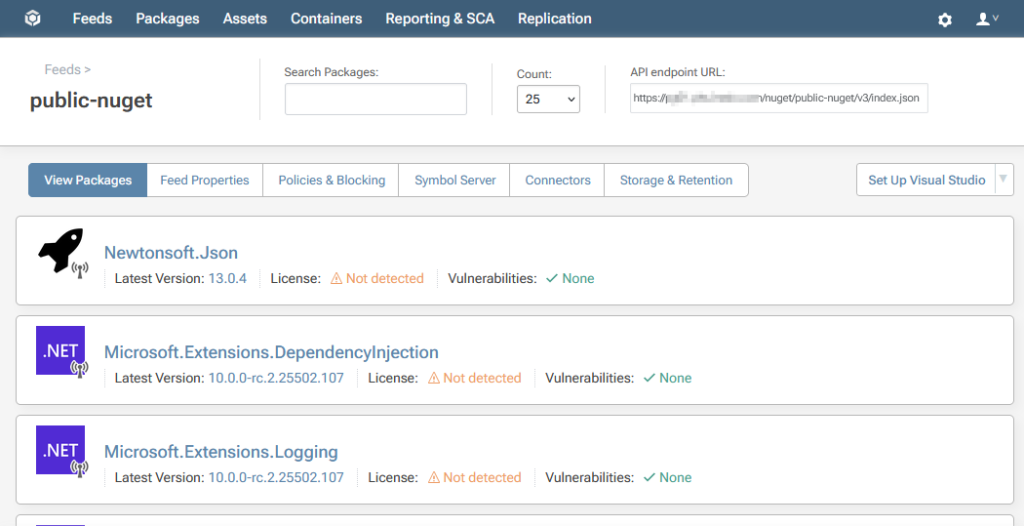
When you set up a feed with a Connector to something like nuget.org, the packages will appear right away on the feed’s page:

Setting up Feeds in ProGet
ProGet’s basic feeds can be customized individually to work just like the different repository types in Sonatype Nexus:
| Sonatype Repository Type | ProGet Feed |
| Hosted Repository | Feed without a Connector |
| Proxy Repository | Feed with Connector to another repository |
| Group Repository | Feed with Connectors to multiple feeds |
Setting Up A Basic Feed
A Feed set up without any connectors acts like a Hosted Repository in Sonatype and is recommended for hosting internal packages. To set one up, create a new feed, selecting the package type.
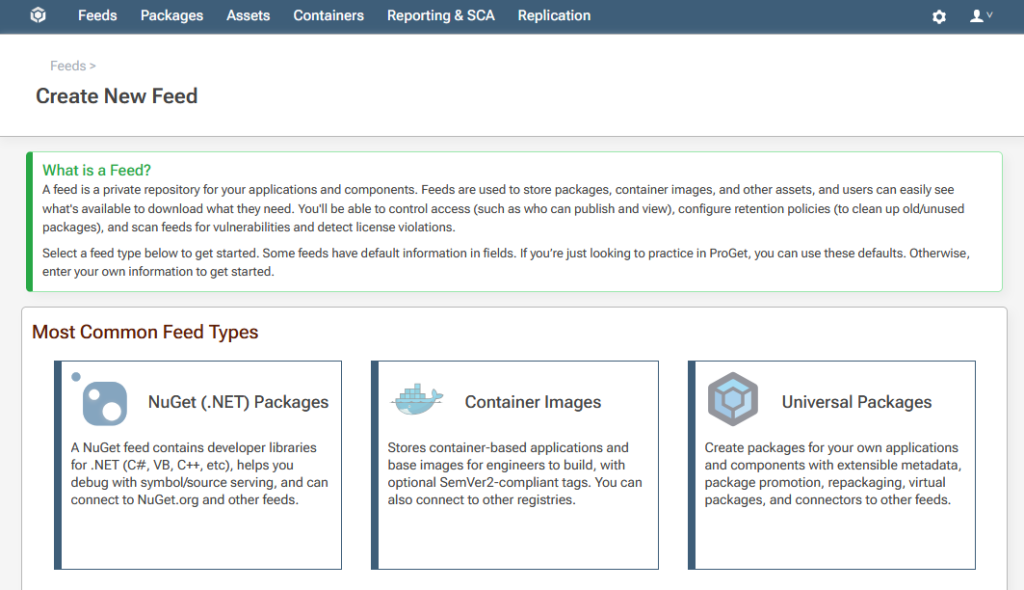
Then select “Private/Internal Packages” from the options given.

This will create an “empty” feed that you can then publish packages to.

Setting Up a Feed with a Connector
A feed with a connector configured to an OSS repository, such as nuget.org, acts like a Proxy Repository in Sonatype and is recommended for proxying and pulling packages from public OSS repositories. To set it up, just create a new feed as usual and choose “Free/Open Source Packages” from the options.

When you’re creating the feed, you’ll have the option to automatically connect it to the OSS repository for that package type.

Once the feed is created, you’ll see the packages being proxied from the OSS repository right away. You can also use the search bar to quickly find specific packages.
Setting up a Feed with Connectors to Multiple Feeds
A feed that connects to multiple other ProGet feeds works like a Group Repository in Sonatype Nexus. This setup is recommended when you want to combine feeds from different teams or projects and make all the packages available in one place. You can also give this aggregated feed its own permissions and filters, separate from the feeds it’s pulling from.
To set it up, just create a new feed as you normally would, then add a connector that points to the other feed(s) you want to aggregate from.

Once you associate the connector with your new feed, all the packages from the connected feeds will appear there automatically.
Migrating Your Existing Sonatype Repositories
So, we’ve covered how to set up your Sonatype repositories in ProGet, but what about all those existing repositories already full of packages in Sonatype? You can easily migrate them using ProGet’s Migration Wizard.
When you’re setting up a new feed in ProGet, just select the “Import” option from the dropdown menu.
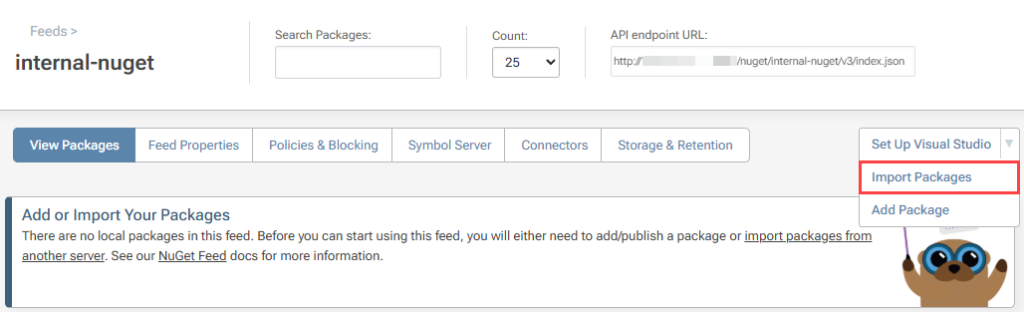
Then choose Sonatype Nexus from the list of available services.

From there, just enter your Sonatype Nexus URL and your credentials. ProGet will automatically migrate your packages over.

For more details, check out our HOWTO: Migrate from Sonatype Nexus to ProGet guide, or watch the video below.
ProGet Feeds as your Package Repositories
ProGet simplifies package management by using customizable Feeds instead of multiple repository types. Connectors allow for the functionality of proxy and group repositories, letting you proxy packages from OSS repositories or aggregate packages from multiple other feeds.
When you’re ready to migrate, start by either moving your existing Sonatype repositories into ProGet or setting up new feeds from scratch. Once you’re more familiar with feeds, you can look into more advanced options like package approval workflows, asset directories, and universal package feeds.