How to Install / Proxy Packages in Visual Studio

How to Install / Proxy Packages in Visual Studio
NuGet’s integration with Visual Studio means you’re connected to NuGet.org by default. Here’s a quick look at how it all works—and what you should keep in mind.
You can browse NuGet packages through the Package Manager. Navigate to:
Tools > NuGet Package Manager > Manage NuGet Packages for Solution…
Then use the Browse tab to search for packages from the public repository.

Next, just select the package you’re looking for, check its details, and click Install to add it to your project. Accept any license agreements to complete the installation.
Connecting directly to NuGet.org might work well for your personal projects, but for larger-scale teams… not so much, with limited control over:
⚠ Vulnerabilities
⚠ Licensing
⚠ Deprecated packages
These risks highlight the need for better oversight in package management, and that’s where a proxy package manager like ProGet can help.
Using a Proxy Package Manager with NuGet Packages
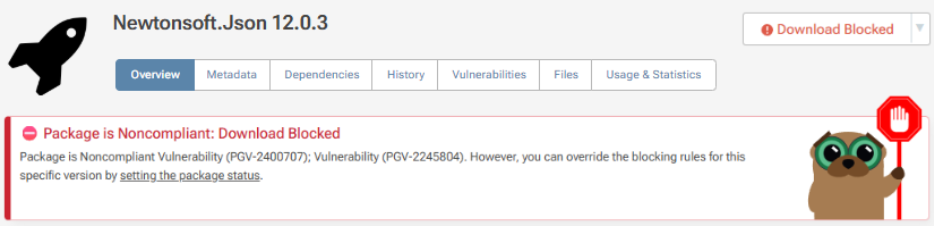
In ProGet you can proxy packages from NuGet.org, without a direct connection, set up approval flows, detect vulnerabilities with vulnerability scanning, block or permit these packages, and create license rules for automatically detected licenses, limiting developers to pulling production-safe packages.
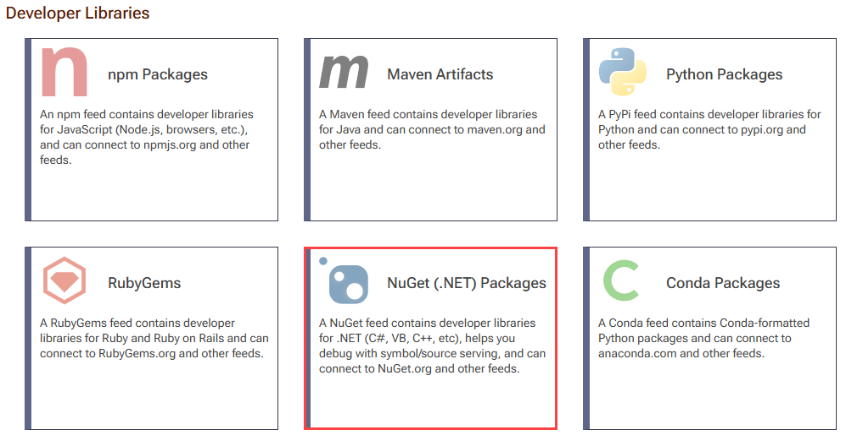
Begin by creating a private NuGet feed in ProGet to host your internal packages. Navigate to Feeds > Create New Feed, then choose NuGet (.NET) Packages.
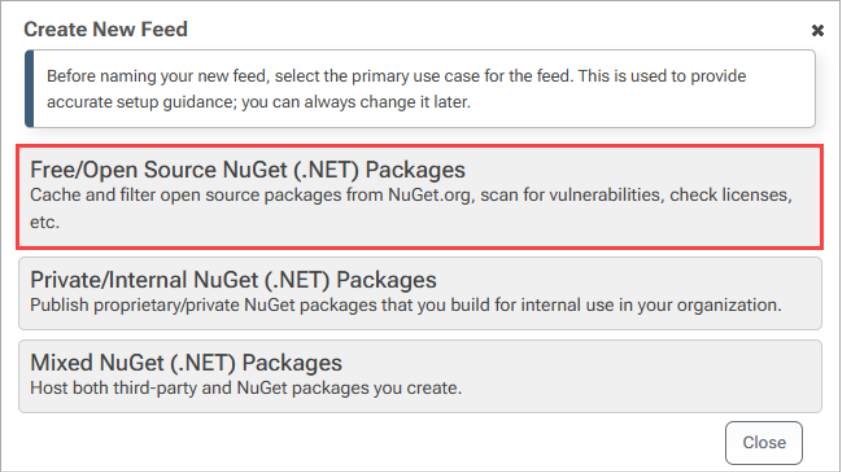
Then select Free/Open Source NuGet (.NET) Packages which will allow you to proxy and cache packages from NuGet.org.
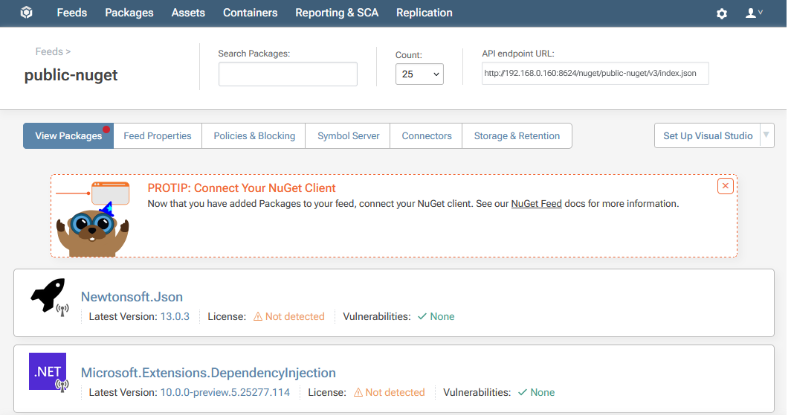
Next, name your feed–for example, public-nuget and click Create Feed.

ProGet will create your public-nuget feed, which will now be populated with packages proxied from NuGet.org.
Adding ProGet Feeds as a Source in Visual Studio
Once your ProGet feeds are ready, it’s super easy for developers to add them as a source in Visual Studio. Navigate to:
Tools > NuGet Package Manager > Package Manager Settings > Package Sources
Then, deselect the “nuget.org” checkbox to stop Visual Studio scanning NuGet.org and ProGet for packages. Limiting package pulls to ProGet avoids licensing issues, vulnerable packages, and dependency conflicts, common problems when using public sources.

⚙️NuGet Feed Endpoint URL:https:.//«proget-server»/nuget/«feed-name»/v3/inedo.json
Next, create a new package source by clicking the + button at the top right. Give your new source a name and enter your ProGet feed URL. Finally, click OK to save your changes.
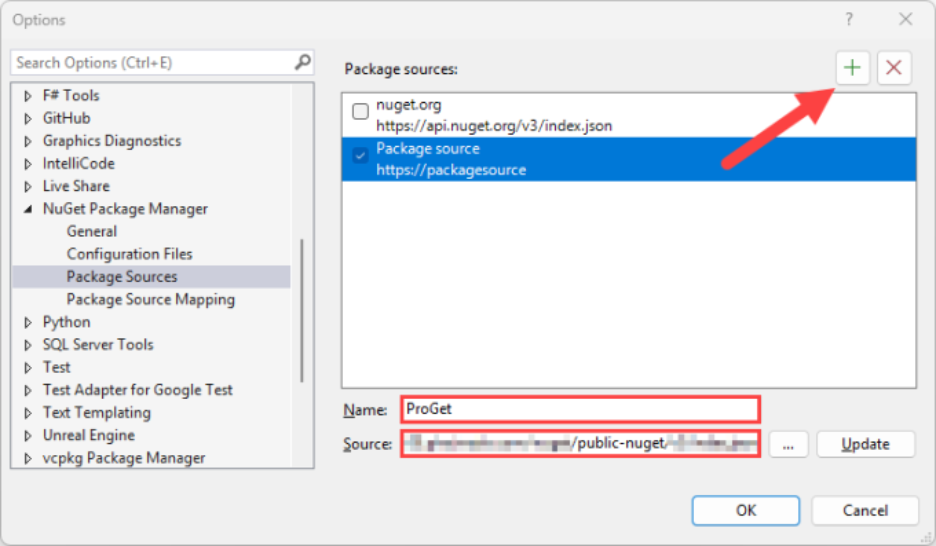
Be sure to click “Update” prior to clicking “OK”:
If you click “Ok” without clicking “Update” your package source configuration will not be saved in Visual Studio.
Visual Studio and ProGet will now be connected. To confirm the connection in Visual Studio, right click on a project in the solution explorer and select Manage NuGet Packages… from the menu. In the Package Manager window under Browse, you should see a window populated with packages from your ProGet NuGet feed.
Integrating the NuGet CLI
You can also use the NuGet CLI to add your approved ProGet NuGet feed as a source:
$ dotnet nuget add source --name "Internal NuGet" https://«proget-server»/nuget/«feed-name»
Once you’ve added the NuGet feed as a source, you’ll be able to install and upgrade NuGet packages.
Using Other NuGet Clients
ProGet can also be added as a source in a number of other popular clients including VS Code and JetBrains Rider.
In VS Code
To add your NuGet feed in ProGet as a source, add it to a nuget.config in your project. The config should look like this:
<?xml version="1.0" encoding="utf-8"?>
<configuration>
<packageSources>
<add key="proget" value="https://«proget-server»/nuget/«feed-name»/v3/index.json"/>
</packageSources></configuration>
In JetBrains Rider
To add your NuGet feed in ProGet as a source, open “NuGet Settings” by navigating to “File” > “Settings”, and then “Build, Execution, Deployment” > “NuGet”. Next, under the “Package Sources” tab, click on the + (Add) button to create a new package source.
In the Name field, enter a name for your source (e.g., internal-nuget), and then in the URL field, enter the URL of your feed.